

Have you ever searched for a quirky gift—maybe a “World’s Best Cat Dad” mug or a giant inflatable T-Rex suit—only to have Amazon haunt you with similar recommendations for the next six months? It’s like the algorithm has a memory like an elephant, and it refuses to let you move on. Your Amazon homepage becomes a cluttered mess of things you bought once, things you looked at by mistake, and things you definitely don’t want to see every time you log in to buy laundry detergent.
Managing your search history isn’t just about being “sneaky” or keeping secrets; it’s about retraining the Amazon recommendation engine. Think of it as a digital spring cleaning for your storefront. By clearing your history, you are essentially telling the AI, “Hey, I’m done with that phase. Show me something new.” So the question is How to Clear Amazon Search History?
The Ghost of Searches Past: Why Amazon Remembers Everything

Amazon is a master of data. Every single click, hover, and search query is recorded to build a sophisticated profile of who you are and what you might buy next. While this can be helpful (like when it reminds you to reorder coffee filters), it often leads to a “bubble” where you only see a narrow slice of products.
This tracking feeds features like “Frequently Bought Together,” “Inspired by your browsing history,” and those relentless retargeting ads that follow you across the internet. When you clear your history, you’re hitting the “off switch” on these biased recommendations. It’s the first step in taking back control of your digital footprint.
The Benefits of an “Algorithm Reset”
Why bother going through the menus to delete your history? There are two main reasons that go beyond just “deleting stuff.”
Cleaning Up Your Digital Storefront
Imagine walking into a physical store where the clerk keeps shoving items in your face based on a joke you told three years ago. Annoying, right? Clearing your history resets your homepage, making it cleaner and more relevant to your current needs, not your past whims.
Protecting Your Privacy in Shared Households
If you share a Prime account with a spouse, parent, or roommate, your “history” is an open book. If you’re planning a surprise party or buying a sensitive health-related item, that search history can ruin the secret faster than a leaked spoiler. Scrubbing your tracks is a practical necessity for shared digital spaces.
Step-by-Step: How to Clear Amazon Search History on Desktop
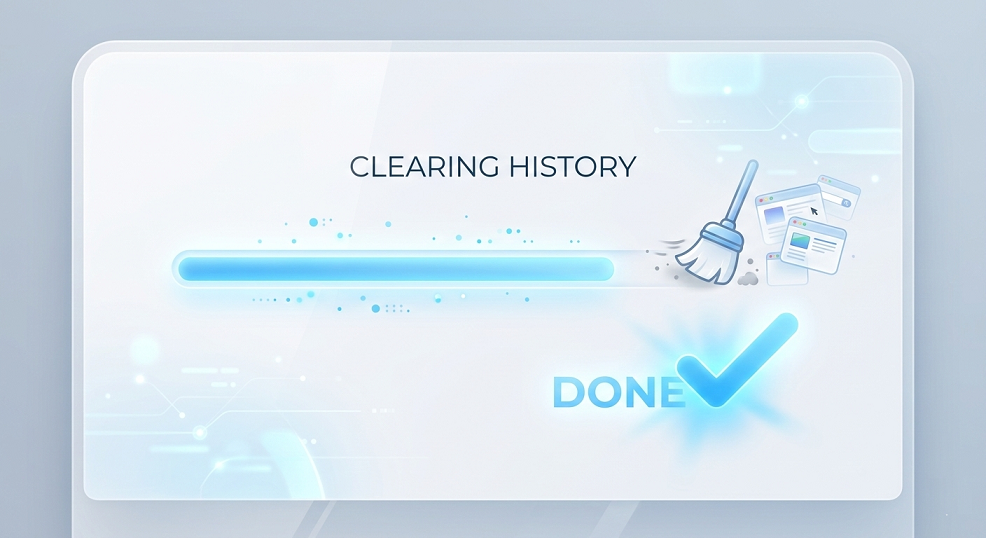
If you’re sitting at your computer, clearing your history is a breeze. Amazon hides these settings a bit, but once you know where they are, it takes less than thirty seconds.
Navigating to Your Browsing History
- Log into your account and look at the top right header.
- Hover over “Account & Lists.”
- In the dropdown menu, look for the section titled “Your Recommendations” or find the “Browsing History” link directly.
Removing Individual Items vs. Clearing All
Once you’re on the Browsing History page, you’ll see a chronological list of everything you’ve viewed.
- To remove one item: Click the “Remove from view” button under the specific product. This is great for fixing one-off mistakes.
- To clear everything: Look for the “Manage history” toggle on the right side. Click the arrow to expand it and select “Remove all items from view.”
How to Delete Amazon Search History on iPhone and Android
Most of us shop on our phones while waiting for coffee or sitting on the couch. The process in the app is slightly different but just as simple.
Using the Amazon Shopping App
- Open the Amazon app and tap the User Profile icon (the little person silhouette) at the bottom.
- Tap on “Your Account.”
- Scroll down to the “Personalization” section and tap “Browsing History.”
- Just like on the desktop, you can remove individual items or tap “Manage” at the top to clear the whole list.
A Quick Shortcut for Mobile Users
If you want to move fast, you can often find a “Browsing History” link right on the home screen of the app if you scroll down past the initial banners. It’s a shortcut designed to help you get back to things you liked, but it works just as well for deleting them!
Pro Tip: How to Turn Off Amazon Tracking Permanently
Do you hate having to manually clear your history every week? You can actually tell Amazon to stop recording your views altogether.
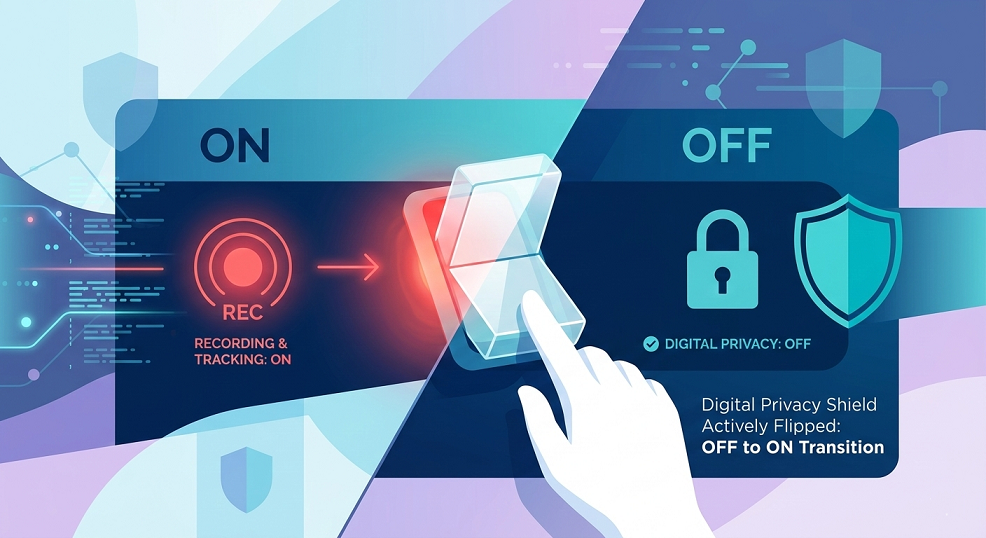
In the same “Manage history” menu (on both desktop and mobile), there is a toggle switch for “Turn Browsing History on/off.” If you flip this to Off, Amazon will stop adding new items to your history. This is the ultimate “incognito mode” for your account. Just keep in mind that this will make your recommendations much more generic over time.
How to Hide Amazon Browsing History from Family Members

Scrubbing your history after the fact is one way to do it, but prevention is better than the cure. If you’re worried about family members seeing what you’re looking for, you need a strategy.
The “Incognito” Shopping Strategy
Before you even head to Amazon.com to search for that surprise engagement ring or a new game console, open your browser in Incognito or Private mode.
Why Private Browsing is Your Best Friend
When you search while logged out in a private window, Amazon can’t link those searches to your account profile. You can browse to your heart’s content, find the item you want, and then—only when you’re ready to buy—log in, add it to your cart, and checkout. This keeps the “browsing” data out of your permanent history.
Managing Search History vs. Order History: What’s the Difference?
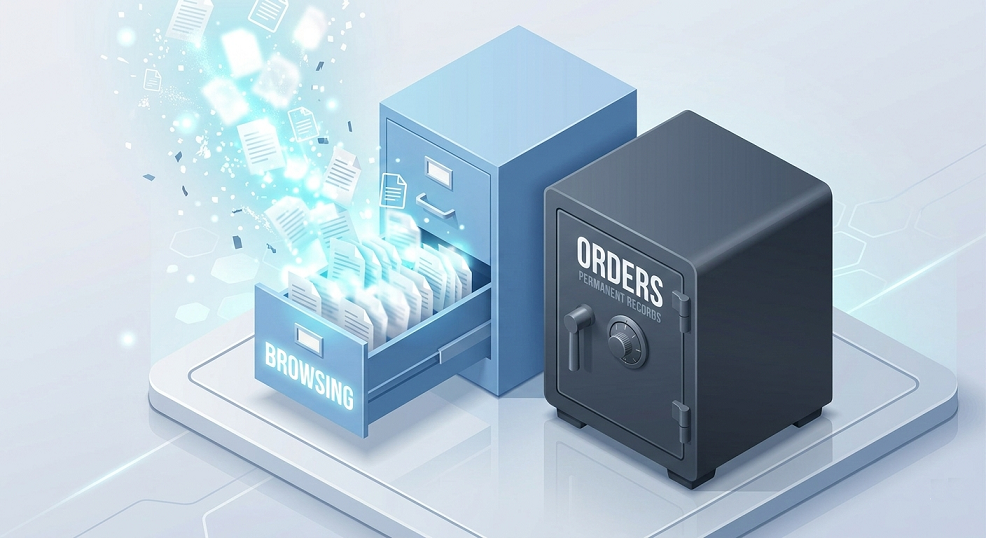
This is where many people get confused. Search history is what you looked at. Order history is what you actually bought.
Can You Truly Delete an Amazon Purchase?
The short answer is: No. For tax reasons, legal compliance, and warranty tracking, Amazon does not allow you to “delete” a transaction from their database. It is a permanent record of a financial exchange.
How to Archive Orders to Keep Them Hidden
While you can’t delete an order, you can Archive it. Archiving an order moves it to a separate, hidden folder so it doesn’t show up in your main “Returns & Orders” list. This is the best way to hide a gift purchase from a nosy spouse who shares your account.
How to Stop Amazon from Recommending Items Based on Past Searches
If you’ve already cleared your history but you’re still seeing weird ads, you might need to check your “Improve Your Recommendations” list.
- Go to “Account & Lists” > “Recommendations.”
- Click on “Improve Your Recommendations.”
- Here, you will see a list of items you’ve purchased. You can toggle the “Use this item for recommendations” switch to Off. This stops a past purchase from influencing what you see in the future.
The Role of “Inspired by Your Browsing” and How to Fix It
That “Inspired by your browsing” row on the homepage is the most visible sign of Amazon’s tracking. It’s like a digital mirror reflecting your interests. If that mirror is showing you things you’d rather forget, clearing your history and disabling the “Improve Your Recommendations” toggle for specific purchases will force Amazon to rebuild that row from scratch using newer, more relevant data.
Conclusion: Taking Control of Your Digital Footprint
At the end of the day, your Amazon account should work for you, not the other way around. By taking five minutes to clear your search history and archive sensitive orders, you’re doing more than just tidying up a list. You’re protecting your privacy, securing your surprises, and—most importantly—retraining a massive AI algorithm to show you what you actually want to see.
Don’t let the “Ghost of Searches Past” haunt your shopping experience. Take back your data, reset your storefront, and enjoy a cleaner, more focused version of the world’s biggest marketplace.
FAQs
1. Does clearing my Amazon search history delete my “Save for Later” items?
No. Your “Save for Later” list is attached to your shopping cart, not your browsing history. Clearing your history will not affect items you’ve saved in your cart.
2. If I turn off browsing history, will Amazon still show me “Frequently Bought Together”?
Yes. “Frequently Bought Together” is based on global user data (what everyone buys with that product), not just your personal history. However, your personalized “Recommended for You” section will become less specific.
3. Can I clear my search history from the Amazon app on my iPad?
Yes, the process is identical to the iPhone app. Go to your User Profile > Your Account > Browsing History.
4. Will clearing my history on my phone also clear it on my laptop?
Absolutely. Your browsing history is tied to your Amazon account, not the specific device you’re using. Once you clear it in one place, it’s gone everywhere.
5. How do I find my “Archived Orders” later?
On a desktop, go to “Returns & Orders.” Click the dropdown menu that usually says “Past 3 months” and scroll down to select “Archived Orders.”